
If you want to control shutter speed on your phone, start with one question. Is my subject moving? That question has run through the Photo Lab since the post on why sports photos are blurry. People ask me all the time, “Weren’t you nervous shooting US Opens, the Super Bowl, or the Olympics?” My answer is always, “No, not at all.” But if you want to make me nervous, tell me to shoot my wife’s annual family reunion. All 25 of them, kids and grandkids included. Now that’s pressure. They know me. They know where I live if I screw it up. And yes, I’ve shot it with my phone. What helps? A camera app.
The Miss
Most people think a blurry photo of a running kid means the phone isn’t good enough. It doesn’t. The shutter was too slow, and the phone picked it.
You can know exactly what’s wrong and still have nowhere to fix it. The stock camera app doesn’t have a shutter speed dial. It decides before you’ve framed the shot. Same story as in Does My Phone Camera Have a Manual Mode?: somebody else made the call.
You can’t own a decision the app already made.
The Photo Lab
The Lesson + Lab
Here’s the decision tree, and it works when the camera lets you use it. Subject first. Is it moving?
Kids running around the yard? Shutter speed leads. 1/800 or faster, depending on the light. Dim light means a higher ISO to pay for it. That’s the trade, and noisy and sharp beats clean and blurry every time.
Family group, everybody standing still? You’ve got time. You can go as low as 1/200, and the ISO can stay low. Same family. Same light. Two different answers. If you want the reasoning behind each setting, Check Your Settings covers it.
With a stock phone camera, you can’t act on either answer. Here’s the fix: a third-party app. Today, two.
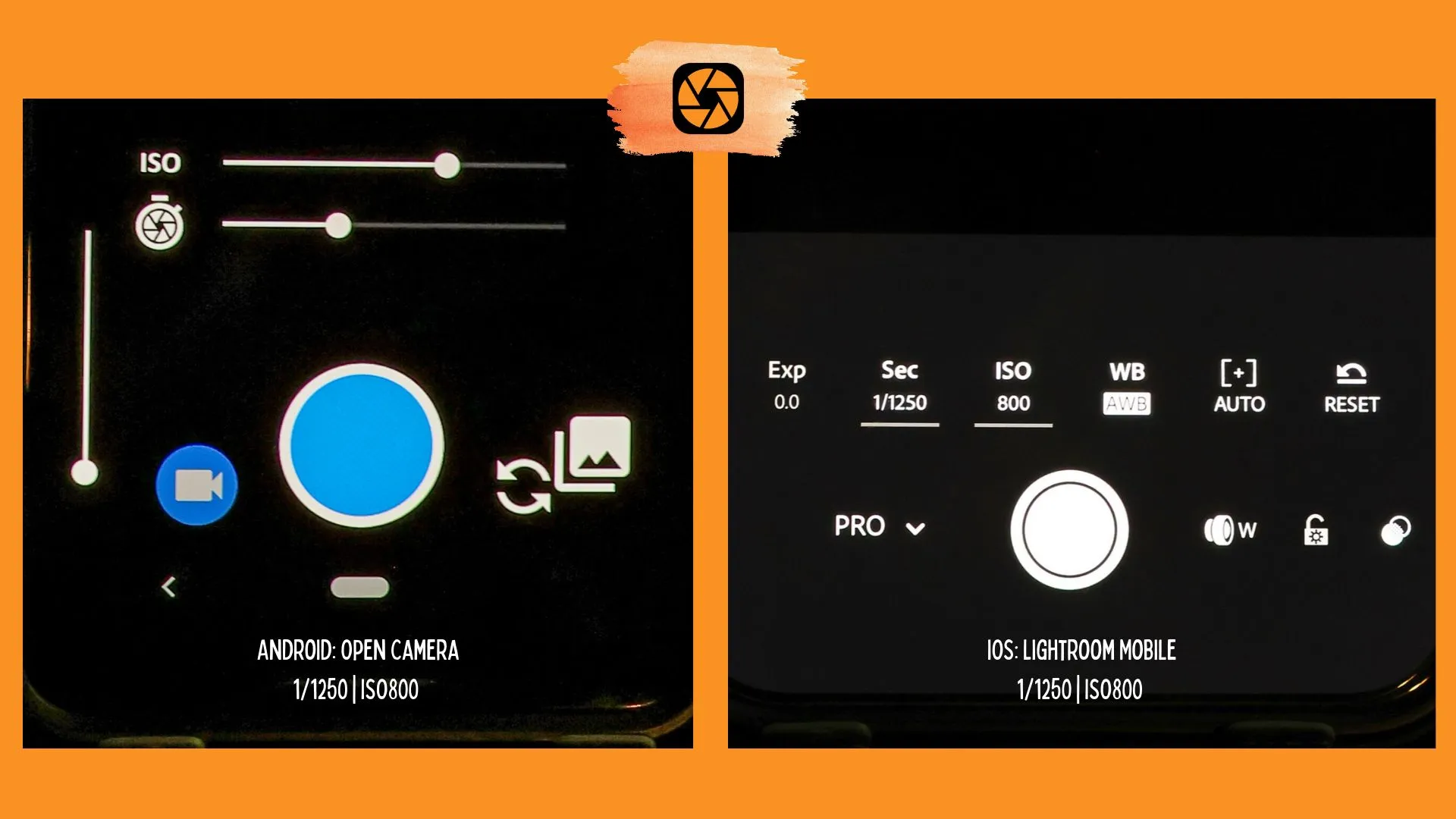
Open Camera is free and Android only. It needs one setup step, and you only do it once. Tap the gear for settings, scroll to Camera API, and switch to Camera2 API. Back on the viewfinder, tap the plus-and-minus exposure icon. Switch the exposure mode from Auto to M. Two sliders show up. The top one is ISO and the bottom one is shutter speed.
Once you’re in M, the app stops managing exposure. There’s no shutter priority. Change the shutter and you have to move the ISO too, or the picture goes black or washes out. You’re making both calls.
The camera in Lightroom works on iPhone and Android. Tap the camera icon in the bottom right corner. Next to the shutter button, change Auto to Pro. Tap the Sec icon on the bottom bar and a dial slides out with the fractions you already know. Pick 1/800 and the app chooses the ISO for you, and keeps adjusting it as the light changes.
On a big camera that’s called shutter priority. It’s marked Tv or S on the dial. You choose the shutter speed. The camera handles the rest. Want to set the ISO yourself too? Tap the ISO icon and pick a number. Now you’re making both calls, same as in Open Camera.
Fair warning. In my experience, dragging a slider with your fingertip isn’t like turning a dial on a big camera. Stopping on an exact number takes a few tries.
Kids running? Lightroom. The ISO keeps up while they move. Family group, everybody holding still? Either one works. iPhone? Lightroom. Android? Try both.
Lab: Try This
Shoot both on the same afternoon. Kids moving first: 1/800 or faster. Then the family standing still: try 1/200. Look at the two pictures side by side. Write down what the light let you get away with.
Reflection + CTA
On a big camera, shutter priority is a spot on the dial. Open Camera doesn’t have one, so you did both jobs yourself. Some of you will feel the pull toward a bigger camera. Good. Now you know what it’s pulling toward. If you want to think that through, start with whether you need a big camera.
Trust it. Trust yourself.
-TMac #shooton
