
You’ve been chasing settings your stock app hides. Here’s one it hands you.
The Miss
Picture a kid in a white jersey in front of a dark bench. You raise your phone and let it pick the brightness. Maybe it nails it. Maybe the jersey comes out dull, and it looked white in front of you.
When I ask phone shooters if they know they can change exposure, most say no. I tell them the phone’s pick is a first guess.
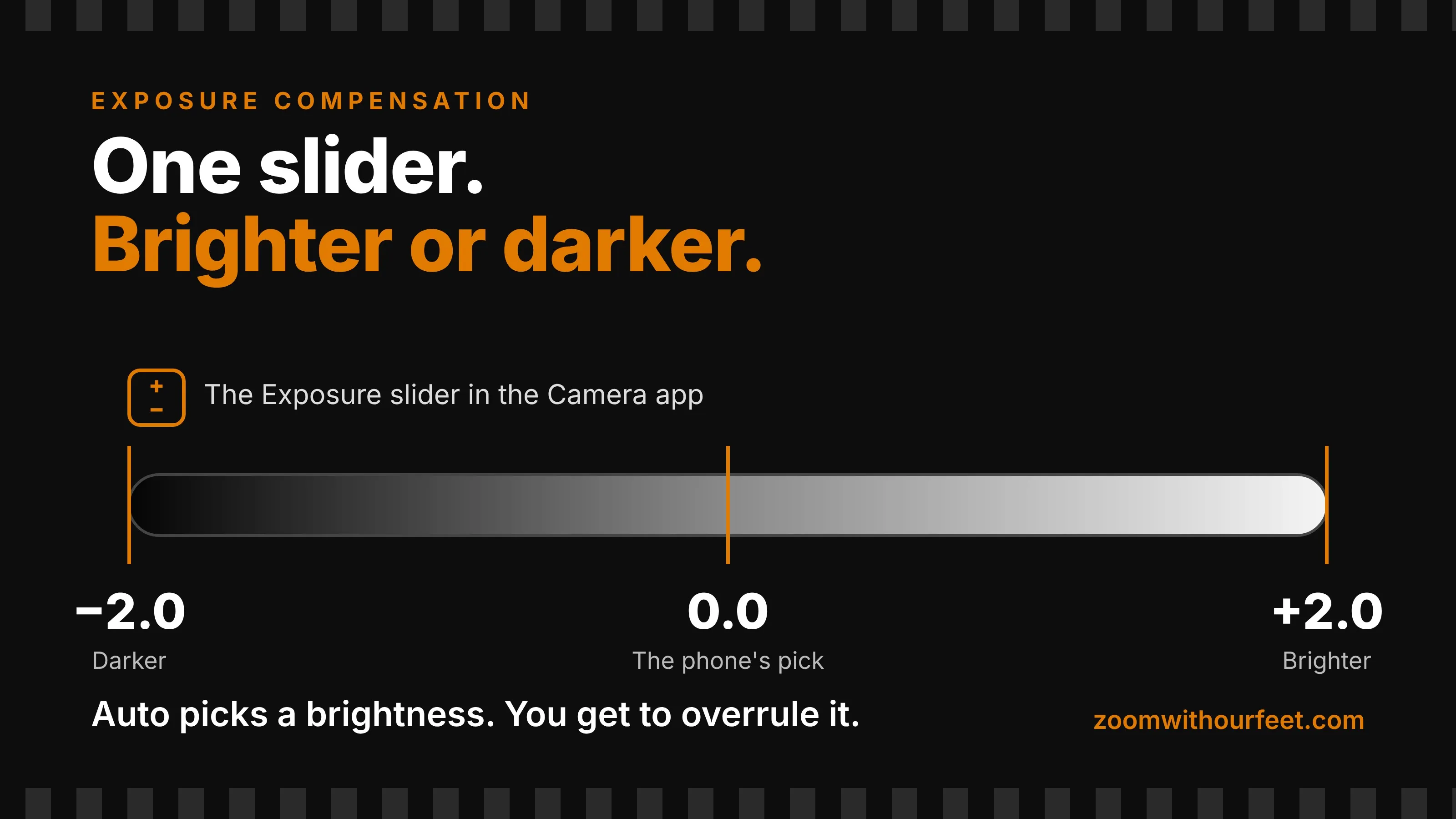
Auto picks a brightness. You get to overrule it.
The Photo Lab
The Lesson + Lab
Here’s where it lives on my phone. I open Camera and tap the word Photo, the one highlighted in yellow. A menu opens. I tap the plus-minus icon labeled Exposure, and a slider shows up at the bottom with a 0.0 readout. Your phone or iOS version may put it somewhere else.
Photographers call this exposure compensation. It tells the camera to make the picture brighter or darker than it planned. Canon says a camera’s meter assumes a scene averages out to a mid-tone gray, about 18% reflectance. A very light subject can fool it into underexposing. Canon’s rule of thumb for snow is plus two to plus three stops. My phone’s slider stops at plus two.
So I tested it. I laid a white towel and a black t-shirt under my phone on a copy stand, with an LED light on each side. Nothing could move. I filled the frame with each one and shot it at -2.0, 0.0 and +2.0.
At 0.0 the towel came out gray, not white, and the shirt came out gray, not black. At -2.0 the towel went dark gray and the shirt went close to black. At +2.0 the towel got much lighter. The right side went close to white. The shirt came up to a lighter gray. Nothing moved but the slider.
A big camera has the same control. Canon’s bodies default to third-of-a-stop steps and usually go up to five stops each way. I shoot my Canon R6 Mark II and R5 Mark II in manual with Auto ISO a lot. The plus-minus control is how I tell the camera what brightness I want. In aperture priority, Fstoppers says plus one makes the shutter speed one stop slower.
My old Nikon FM2 had no plus-minus control that I remember. The FM2n manual says its meter reads a scene as 18% gray. When it gets fooled, you fix it yourself. Aim at the main subject, take the reading, then go back to your framing. Different labels, same move. Look at the picture, decide it’s too dark or too bright, and nudge it. Do that on your phone now and the dial on a big camera will already feel familiar.
If you read the lesson on video exposure lock, you’ve already held a brightness in place. The lock holds it. The slider moves it. And when a window sits behind your subject, tap and hold on the face first.
Lab: Try This
Pick something light and something dark that hold still, like a white towel and a black shirt. Shoot them outside or in a bright room.
- Fill the frame with the light one. Open Camera, tap Photo, and tap the plus-minus icon. Take a picture at 0.0.
- Move the slider to -2.0 and take another. Move it to +2.0 and take a third.
- Do the same with the dark one.
- Which frame looks like what your eyes saw? That’s your setting for this light.
- Put the slider back to 0.0 before you shoot anything that matters.
Reflection + CTA
Last week you found out the lens opening won’t do much for blur. This week you found a control that’s already in your Camera app. Brighter or darker is yours on a phone, and it’s yours on a big camera. Next week: what your phone taught you about the next camera.
Take the pictures this week.
Sources:
- Exposure Compensation, Canon Professional Network
- What “Exposure Compensation” Actually Does (and When You Need It), Fstoppers
- Nikon FM2(n) Instruction Manual Part III, reproduced at mir.com.my
Trust it. Trust yourself.
-TMac #shooton
